mirror of
https://github.com/rvtr/wiki.git
synced 2025-10-31 06:31:13 -04:00

43 lines
3.3 KiB
Markdown
43 lines
3.3 KiB
Markdown
---
|
|
lang: pl-PL
|
|
layout: wiki
|
|
section: twilightmenu
|
|
category: other
|
|
title: Granie na szerokim ekranie
|
|
description: Jak używać TWiLight Menu++ w trybie szerokiego (panoramicznego) ekranu na Nintendo 3DS
|
|
---
|
|
|
|
This section requires a 3DS family console, running a modern CFW environment from [3ds.hacks.guide](https://3ds.hacks.guide).
|
|
{:.alert .alert-info}
|
|
|
|
If you're currently using Luma v13, please update to v13.0.1, before following this guide.
|
|
{:.alert .alert-info}
|
|
|
|
### Instalacja
|
|
1. Otwórz FBI i wybierz `Remote Install`, a następnie `Scan QR Code`
|
|
1. Zeskanuj ten kod QR, by zainstalować najnowszą wersję [Universal-Updater](https://github.com/Universal-Team/Universal-Updater)<br> 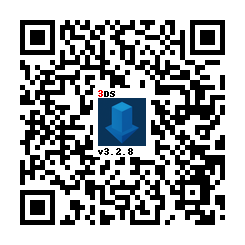
|
|
1. Otwórz Universal Updater z Menu HOME
|
|
1. Install the TWPatch package
|
|
- If your console is unable to access the Internet, you can download [TWPatch.cia](https://gbatemp.net/download/twpatch.37400/version/38832/download?file=302085) directly, then install it with FBI
|
|
1. Return to the HOME menu and launch TWPatch
|
|
- If you get a message which says `Can't open /luma/exeTWL.bin`, then use [TWLFix-CFW](https://github.com/MechanicalDragon0687/TWLFix-CFW/releases/) to fix broken TWL mode
|
|
1. Hold <kbd class="face">Y</kbd> + <kbd class="face">B</kbd> to open the patch menu and enable `Widescreen patch (384x240 16:10)`
|
|
1. (Optional!) For a less pixelated widescreen, also enable `GPU scaling (blurry, no filters)`
|
|
1. Press <kbd class="face">B</kbd> to exit the patch menu
|
|
1. Press <kbd>START</kbd> to generate a `TwlBg.cxi` file with widescreen
|
|
- If the top screen doesn't indicate that wide patch is enabled, start from step 3 again
|
|
1. Move `TwlBg.cxi` from `sd:/luma/sysmodules/` to `sd:/_nds/TWiLightMenu/TwlBg/` (create `TwlBg` folder, if it doesn't exist), and rename the file to `Widescreen.cxi`
|
|
1. Restart your 3DS while holding <kbd>SELECT</kbd> to open Luma3DS's configuration
|
|
1. Enable `external FIRMs and modules`, then press <kbd>START</kbd> to save and quit
|
|
1. Open TWiLight Menu++, press <kbd class="face">Y</kbd> on your desired game to bring up the per-game settings, and set `Screen Aspect Ratio` to `16:10`
|
|
|
|
I to wszystko! Ciesz się swoimi szerokoekranowymi grami na DS!
|
|
|
|
**NOTES:**
|
|
1. Do not hold <kbd>START</kbd> or <kbd>SELECT</kbd> when launching TWLMenu++, if you don't want widescreen to look glitched
|
|
1. Not every game is widescreen compatible. [Here is a list of games with widescreen support](https://github.com/DS-Homebrew/TWiLightMenu/blob/master/7zfile/3DS%20-%20CFW%20users/Games%20supported%20with%20widescreen.txt)
|
|
1. If you're stuck in widescreen mode in all of TWL_FIRM (including the TWLMenu++ GUI) after following this guide and launching a widescreen-compatible game, delete `TwlBg.cxi` at `sd:/luma/sysmodules/`.
|
|
- If the problem persists, [uninstall](https://wiki.ds-homebrew.com/twilightmenu/uninstalling-3ds) and [re-install](https://wiki.ds-homebrew.com/twilightmenu/installing-3ds) TWiLight Menu++, and re-follow the above guide, as well as using the original build of Luma
|
|
1. Most widescreen patches will only adjust 3D elements for widescreen, 2D elements (such as menus) will only be stretched
|
|
1. Luma3DS **must** be loaded from the SD card, if widescreen isn't working ensure that you have `boot.firm` in the root of your SD
|