---
lang: pl-PL
layout: wiki
section: twilightmenu
category: other
title: Granie na szerokim ekranie
description: Jak używać TWiLight Menu++ w trybie szerokiego (panoramicznego) ekranu na Nintendo 3DS
---
This section requires a 3DS family console, running a modern CFW environment from [3ds.hacks.guide](https://3ds.hacks.guide).
{:.alert .alert-info}
If you're currently using Luma v13, please update to v13.0.1, before following this guide.
{:.alert .alert-info}
### Instalacja
1. Otwórz FBI i wybierz `Remote Install`, a następnie `Scan QR Code`
1. Zeskanuj ten kod QR, by zainstalować najnowszą wersję [Universal-Updater](https://github.com/Universal-Team/Universal-Updater)
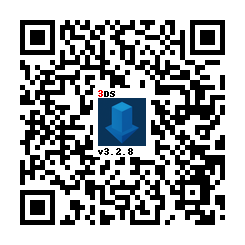
1. Otwórz Universal Updater z Menu HOME
1. Install the TWPatch package
- If your console is unable to access the Internet, you can download [TWPatch.cia](https://gbatemp.net/download/twpatch.37400/version/38832/download?file=302085) directly, then install it with FBI
1. Return to the HOME menu and launch TWPatch
- If you get a message which says `Can't open /luma/exeTWL.bin`, then use [TWLFix-CFW](https://github.com/MechanicalDragon0687/TWLFix-CFW/releases/) to fix broken TWL mode
1. Hold Y + B to open the patch menu and enable `Widescreen patch (384x240 16:10)`
1. (Optional!) For a less pixelated widescreen, also enable `GPU scaling (blurry, no filters)`
1. Press B to exit the patch menu
1. Press START to generate a `TwlBg.cxi` file with widescreen
- If the top screen doesn't indicate that wide patch is enabled, start from step 3 again
1. Move `TwlBg.cxi` from `sd:/luma/sysmodules/` to `sd:/_nds/TWiLightMenu/TwlBg/` (create `TwlBg` folder, if it doesn't exist), and rename the file to `Widescreen.cxi`
1. Restart your 3DS while holding SELECT to open Luma3DS's configuration
1. Enable `external FIRMs and modules`, then press START to save and quit
1. Open TWiLight Menu++, press Y on your desired game to bring up the per-game settings, and set `Screen Aspect Ratio` to `16:10`
I to wszystko! Ciesz się swoimi szerokoekranowymi grami na DS!
**NOTES:**
1. Do not hold START or SELECT when launching TWLMenu++, if you don't want widescreen to look glitched
1. Not every game is widescreen compatible. [Here is a list of games with widescreen support](https://github.com/DS-Homebrew/TWiLightMenu/blob/master/7zfile/3DS%20-%20CFW%20users/Games%20supported%20with%20widescreen.txt)
1. If you're stuck in widescreen mode in all of TWL_FIRM (including the TWLMenu++ GUI) after following this guide and launching a widescreen-compatible game, delete `TwlBg.cxi` at `sd:/luma/sysmodules/`.
- If the problem persists, [uninstall](https://wiki.ds-homebrew.com/twilightmenu/uninstalling-3ds) and [re-install](https://wiki.ds-homebrew.com/twilightmenu/installing-3ds) TWiLight Menu++, and re-follow the above guide, as well as using the original build of Luma
1. Most widescreen patches will only adjust 3D elements for widescreen, 2D elements (such as menus) will only be stretched
1. Luma3DS **must** be loaded from the SD card, if widescreen isn't working ensure that you have `boot.firm` in the root of your SD