mirror of
https://github.com/rvtr/wiki.git
synced 2025-10-31 06:31:13 -04:00

61 lines
3.6 KiB
Markdown
61 lines
3.6 KiB
Markdown
---
|
||
lang: ja-JP
|
||
layout: wiki
|
||
section: twilightmenu
|
||
category: installing
|
||
title: インストール(3DS)
|
||
long_title: TWiLight Menu++をインストール(3DS)
|
||
description: ニンテンドー3DSにTWiLight Menu++をインストールする方法
|
||
tabs:
|
||
-
|
||
working-camera: 機能されるカメラ
|
||
non-working-camera: 機能されないカメラ
|
||
manual: 手動
|
||
---
|
||
|
||
まず、3DSにカスタムファームウェアが必要です。インストールには[3ds.hacks.guide](https://3ds.hacks.guide)に従ってください。
|
||
{:.alert .alert-info}
|
||
|
||
{% capture tab-working-camera %}
|
||
1. FBIを開き、`Remote Install`を選択し、`Scan QR Code`します
|
||
1. このQRコードをスキャンして、[Universal-Updater](https://github.com/Universal-Team/Universal-Updater)の最新バージョンをインストール<br> 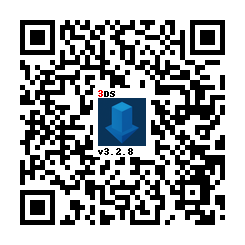
|
||
1. FBIを閉じ、Universal-Updaterを起動します
|
||
- HOMEメニューに表示されない場合は、3DSを再起動してください
|
||
1. アプリのグリッドで「TWiLight Menu++」を見つけます。見つからない場合は、サイドバーの3番目のダブで検索できます
|
||
- 次のアイコンがあります:
|
||
1. <kbd class="face">A</kbd>を押すか、サイドバーのダウンロードアイコンをタップし、`TWiLight Menu++`を選択してインストールします
|
||
- しばらく時間がかかります
|
||
{% endcapture %}
|
||
{% assign tab-working-camera = tab-working-camera | split: "////////" %}
|
||
|
||
{% capture tab-non-working-camera %}
|
||
1. 最新の[`Universal-Updater.cia`](https://github.com/Universal-Team/Universal-Updater/releases/latest/download/Universal-Updater.cia)をダウンロード
|
||
1. `Universal-Updater.cia`ファイルをSDカードの任意の場所に配置
|
||
1. ニンテンドー3DSでFBIを起動
|
||
1. FBIで、`Universal-Updater.cia`ファイルを貼り付けた場所に移動
|
||
1. `Universal-Updater.cia`ファィルを選択し、「Install & Delete」を押します
|
||
1. FBIを閉じ、Universal-Updaterを起動
|
||
- HOMEメニューに表示されない場合は、3DSを再起動してください
|
||
1. アプリのグリッドで「TWiLight Menu++」を見つけます。見つからない場合は、サイドバーの3番目のダブで検索できます
|
||
- 次のアイコンがあります:
|
||
1. <kbd class="face">A</kbd>を押すか、サイドバーのダウンロードアイコンをタップし、`TWiLight Menu++`を選択してインストールします
|
||
- しばらく時間がかかります
|
||
{% endcapture %}
|
||
{% assign tab-non-working-camera = tab-non-working-camera | split: "////////" %}
|
||
|
||
{% capture tab-manual %}
|
||
1. 最新の[`TWiLightMenu-3DS.7z`](https://github.com/DS-Homebrew/TWiLightMenu/releases/latest/download/TWiLightMenu-3DS.7z)をダウンロード
|
||
1. `TWiLightMenu-3DS.7z`を抽出
|
||
1. `_nds`フォルダをSDカードのルートにコピー
|
||
1. `BOOT.NDS`ファイルをSDカードのルートにコピー
|
||
1. `roms`フォルダをSDカードのルートにコピー
|
||
1. 2つの`.cia`ファイルをSDカードのルートにコピー
|
||
1. 3DSで、FBIを使って2つのCIAをインストール
|
||
{% endcapture %}
|
||
{% assign tab-manual = tab-manual | split: "////////" %}
|
||
|
||
### インストール
|
||
|
||
{% assign tabs = tab-working-camera | concat: tab-non-working-camera | concat: tab-manual %}
|
||
{% include tabs.html index=0 tabs=tabs %}
|