mirror of
https://github.com/rvtr/wiki.git
synced 2025-10-31 06:31:13 -04:00

38 lines
3.2 KiB
Markdown
38 lines
3.2 KiB
Markdown
---
|
|
lang: de-DE
|
|
layout: wiki
|
|
section: twilightmenu
|
|
category: other
|
|
title: Im Breitbildformat spielen
|
|
description: Wie man TWiLight Menu++ im Breitbildformat auf dem Nintendo 3DS verwendet
|
|
---
|
|
|
|
Dieser Abschnitt erfordert eine Konsole der 3DS-Familie, auf der eine moderne CFW-Umgebung von [3ds.hacks.guide](https://3ds.hacks.guide)läuft.
|
|
{:.alert .alert-info}
|
|
|
|
### Installation
|
|
1. Öffne FBI und wähle `Remote-Installation`, dann `QR-Code scannen`
|
|
1. Scannen Sie diesen QR-Code, um die neueste Version von [Universal-Updater](https://github.com/Universal-Team/Universal-Updater) zu installieren<br> 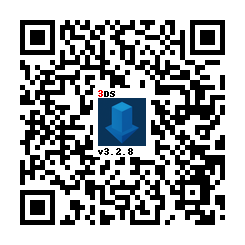
|
|
1. Öffne Universal Updater aus deinem HOME-Menü
|
|
1. Installiere das TWPatch-Paket
|
|
- Wenn deine Konsole nicht auf das Internet zugreifen kann, kannst du [TWPatch.cia](https://gbatemp.net/download/twpatch.37400/version/38832/download?file=302085) direkt herunterladen und dann mit FBI installieren
|
|
1. Kehre zum HOME-Menü zurück und starte TWPatch
|
|
1. Hold <kbd class="face">Y</kbd> + <kbd class="face">B</kbd> to open the patch menu and enable `Widescreen patch (384x240 16:10)`
|
|
1. (Optional!) For a less pixelated widescreen, also enable `GPU scaling (blurry, no filters)`
|
|
1. Drücke <kbd class="face">B</kbd> um das Patch-Menü zu verlassen
|
|
1. Drücke <kbd>START</kbd> um eine `TwlBg.cxi` Datei mit Widescreen zu erzeugen
|
|
- If the top screen doesn't indicate that wide patch is enabled, start from step 3 again
|
|
1. Verschiebe `TwlBg.cxi` von `sd:/luma/sysmodules/` zu `sd:/_nds/TWiLightMenu/TwlBg/` (Erstelle den `TwlBg` Ordner, wenn er nicht existiert), und benenne die Datei in `Widescreen.cxi` um
|
|
1. Starte deinen 3DS neu, während du <kbd>SELECT</kbd> gedrückt hältst, um die Konfiguration von Luma3DS zu öffnen
|
|
1. Aktiviere `external FIRMs and modules`, dann drücke <kbd>START</kbd> um zu speichern und zu beenden
|
|
1. Open TWiLight Menu++, press <kbd class="face">Y</kbd> on your desired game to bring up the per-game settings, and set `Screen Aspect Ratio` to `16:10`
|
|
|
|
Alles erledigt! Genieße deine DS Spiele im Breitbildschirm!
|
|
|
|
**HINWEISE:**
|
|
1. Do not hold <kbd>START</kbd> or <kbd>SELECT</kbd> when launching TWLMenu++, if you don't want widescreen to look glitched
|
|
1. Nicht jedes Spiel ist mit dem Breitbildformat kompatibel. [Here is a list of games with widescreen support](https://github.com/DS-Homebrew/TWiLightMenu/blob/master/7zfile/3DS%20-%20CFW%20users/Games%20supported%20with%20widescreen.txt)
|
|
1. If you're stuck in widescreen mode in all of TWL_FIRM (including the TWLMenu++ GUI) after following this guide and launching a widescreen-compatible game, delete `TwlBg.cxi` at `sd:/luma/sysmodules/`, and [uninstall](https://wiki.ds-homebrew.com/twilightmenu/uninstalling-3ds) and [re-install](https://wiki.ds-homebrew.com/twilightmenu/installing-3ds) TWiLight Menu++, and re-follow the above guide, as well as using the original build of Luma
|
|
1. Most widescreen patches will only adjust 3D elements for widescreen, 2D elements (such as menus) will only be stretched
|
|
1. Luma3DS **must** be loaded from the SD card, if widescreen isn't working ensure that you have `boot.firm` in the root of your SD
|