
14 KiB
| lang | layout | section | category | title | description | tabs | |||||||
|---|---|---|---|---|---|---|---|---|---|---|---|---|---|
| ko-KR | wiki | ds-index | guides | DS 게임 포워더 | hiyaCFW나 3DS HOME 메뉴에서 DS 게임 포워더를 사용하는 방법 |
|
Forwarders are shortcuts for games that you can install to your home menu or hiyaCFW menu. You can load DS games from the SD card (using nds-bootstrap) or from a compatible flashcard (via its respective kernel) using forwarders installed to your menu of choice.
DS 게임들은 디지털의 .nds 포맷으로 덤핑되어야 합니다. DS 카트리지들은 3DS에서는 GodMode9을 통해, DSi에서는 GodMode9i를 통해서 덤핑할 수 있습니다.
{:.alert .alert-info}
만약 문제가 발생했다면, GBAtemp 스레드의 FAQ들을 살펴 보시기 바랍니다. {:.alert .alert-warning}
다음 중 HOME 메뉴에 추가할 것을 선택해 주세요.
{% capture tab-3ds-sd-card %}
이 페이지는 당신이 3ds.hacks.guide를 통해서 CFW를 설치한 것을 가정하고 있습니다. {:.alert .alert-warning}
Part 1: 파일 다운로드하기
만약 3DS에 이미 Universal-Updater가 설치되어 있다면, 본 파트의 3번으로 스킵하셔도 무방합니다. {:.alert .alert-info}
- FBI를 열고
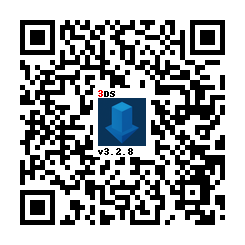
Remote Install을 선택, 그 후에Scan QR Code를 선택해 주세요. - 아래의 QR 코드를 스캔해서 최신 버전의 Universal-Updater를 설치해 주세요.
- FBI를 끝내고, HOME Menu에서부터 Universal-Updater를 열어 주세요.
- NDSForwarder를 검색, 설치해 주세요.
- NDSForwarder의 준비가 완료되었습니다.
Part 2: NDSForwarder
- Homebrew Launcher를 실행해 주세요.
- Homebrew Launcher 내에서,
NDS Forwarder Generator를 실행해 주세요. - 당신의 게임 파일 위치에 들어가서, A를 눌러 주세요.
Yes를 눌러서, 설치를 확정해 주세요.- 설치가 끝나면, 당신의 게임이 HOME 메뉴에 나올 것입니다. {% endcapture %} {% assign tab-3ds-sd-card = tab-3ds-sd-card | split: "////////" %}
{% capture tab-dsi-sd-card %}
준비물
- Unlaunch와 hiyaCFW가 설치된 닌텐도 DSi
- The latest release of NDSForwarder-DSi
Part 1: Getting started
- Copy
NDSForwarder.dsito your SD card root- This can optionally be installed to hiyaCFW directly using TMFH
- Download the Forwarder pack for DSi SD Card
- Extract the contents of the
for SD Card rootfolder to the root of your DSi's SD card
After you extract the pack for your card, you can edit sd:/_nds/nds-bootstrap.ini and change the following settings.
- BOOST_CPU: If set to 1, TWL clock speed is used, so lags begone
- SOUND_FREQ: If set to 1, sound will play at 48khz, instead of 32khz
- LANGUAGE: If set to -1, the system language will be used
- REGION: If set to -2, the DSiWare game's region will be used instead of the system's
Part 2: Getting the AP fix files from TWiLight Menu++
If you already have TWiLight Menu++, skip to the next section. {:.alert .alert-info}
- Download the latest
TWiLightMenu-DSi.7z - In the
.7zfile, go to the_nds/TWiLightMenu/extrasfolder - Drag the
apfix.pckfile tosd:/_nds/ntr-forwarder/
Part 3: NDSForwarder-DSi
- Reinsert your SD card into your device
- Hold A + B, then power on your device to boot to Unlaunch
- Launch
NDSForwarder.dsi- If you get a
nitroFSInit() failmessage, try using TWiLight Menu++ to launch, or placeNDSForwarder.dsion the root of your SD card
- If you get a
- Press A on
Install - Navigate to your game's location and press A
- After it is installed, your game will now appear as a title on your hiyaCFW DSi Menu
{% endcapture %} {% assign tab-dsi-sd-card = tab-dsi-sd-card | split: "////////" %}
{% capture tab-flashcard %}
Requirements
- DSi users:
- A Nintendo DSi with Unlaunch and hiyaCFW installed
- The latest release of Title Manager for Hiya
- 3DS users:
- A Nintendo 3DS family console with modern CFW environment from 3ds.hacks.guide
{% capture flashcards %} The recommended flashcards are the DSTT and Acekard 2i. If you want perfect game compatibility, get the SuperCard DSTWO/DSTWO PLUS. The only downside is that it drains your system battery faster.
If you have a flashcard that works with Apache Thunder's NTR Launcher, you can request it on the GBAtemp thread. Be sure to specify which build you're using (Normal or Alt), and if RESETSLOT1 is set to 0 or 1 in sd:/nds/ntr_launcher.ini.
Compatible:
- Acekard 2(i) (DSi-Enhanced games, including newer NTR games, don't work)
- Acekard RPG
- DSTT
- DSTT Advance
- Galaxy Eagle
- M3 DS Real
- M3 DS Simply (uses < 2 GB microSD card)
- R4 DS (Original Non-SDHC version, uses < 2 GB microSD card)
- R4 SDHC Snoopy
- R4 SDHC RTS LITE (www.r4isdhc.com)
- R4 SDHC Upgrade (www.r4i-sdhc.com)
- R4i3D (www.r4i3d.com)
- R4iDSN
- R4i Gold
- R4i Gold RTS (www.r4ids.cn)
- R4i-SDHC (www.r4i-sdhc.com) (Normal and RTS versions)
- R4iTT (www.r4itt.net) (Purple card may be incompatible)
- SuperCard DSONE
- SuperCard DSTWO (Normal and Plus versions)


Untested:
- R4i3D NEW (Use R4iDSN template and pack)
Partially compatible:
- Ace 3DS+ (Game compatibility is bad, so saving/loading save file results in crashing)
- Gateway Blue Card (Game compatibility is bad, so saving/loading save file results in crashing)
- EX4DS (Game compatibility is bad, so saving/loading save file results in crashing)
- R4iLS (Game compatibility is bad, so saving/loading save file results in crashing)
- Cards with www.r4isdhc.com.cn (Game compatibility is bad, so saving/loading save file results in crashing)
Incompatible:
- CycloDS (i)Evolution (Can autoboot ROMs, but it works differently than other flashcards)
- (i)Edge (Unable to autoboot a .nds ROM)
- R4 Gold Pro (www.r4i-gold.com / www.r4i-gold.me) (YSMenu (not the forwarder process) bricks the card)
- R4i3D (2012)
- R4 Infinity Dual Core
- R4 SDHC
- R4 SDHC Dual-Core (www.r4isdhc.com) (YSMenu (not the forwarder process) bricks the card) {% endcapture %}
A supported flashcard from this list
- A 64 bit OS
- Forwarder3-DS
- Java 8
- Linux users: JavaFX
- Debian-based: Run this script
- Arch:
sudo pacman -S java8-openjfx && sudo archlinux-java set java-8-openjdk/jre
Part 1: Getting started
- Download one of these packs:
- Extract the contents of the
for Slot-1 microSDfolder to the root of your flashcard's microSD card, and (if the folder exists) the contents of thefor 3DS SD cardfolder to the root of your 3DS's SD card- What will be in each pack for loading ROMs:
- Original R4/M3 Simply - WoodR4 & YSMenu
- DSTT/R4i Gold/R4i-SDHC/R4 SDHC Dual-Core/R4 SDHC Upgrade/SC DSONE, Acekard 2(i)/M3DS Real/R4i-SDHC 1.4.x - YSMenu
- Acekard RPG, Ace 3DS+/Gateway Blue Card/R4iLS/R4iTT, R4iDSN/R4i Gold RTS - WoodR4
- What will be in each pack for loading ROMs:
After you extract the pack for your card, you can edit sd:/_nds/ntr_forwarder.ini to change the following settings. This isn't possible for Acekard RPG, R4 DS, and R4i Gold RTS.
NTRCLOCK: If set to0or A is held, the DSi boot screen will appear instead of the normal DS splash, and TWL clock speed is used, so lags begoneDISABLEANIMATION: If set to1or B is held, the DS/DSi boot screen is skippedHEALTHSAFETYMSG: If set to1, the boot screen's health and safety message will appear on the bottom screen, otherwise the bottom screen stays white with no health and safety message
Part 2: Getting the AP fix files from TWiLight Menu++
If you already have TWiLight Menu++, skip to the next section. {:.alert .alert-info}
- Download the latest
TWiLightMenu-3DS.7z - In the 7z file, go to the
_nds/TWiLightMenu/extrasfolder - Drag the
apfix.pckfile tofat:/_nds/ntr-forwarder/
Part 3: Forwarder3-DS
- Open
Forwarder3DS.jar- Windows users: If it doesn't open, download this Forwarder3DS.bat, place it in the same folder as Forwarder3DS.jar, and run it
- Set your card as the
Targeton the left- NOTE: If you don't see a list of cards, download this zip, and put the
forwardersfolder in the same folder as Forwarder3DS.jar, then rename it to.forwarders
- NOTE: If you don't see a list of cards, download this zip, and put the
- Enable
Automatically set ROM path- Linux users: The automatic path is incorrect since it includes the entire path (e.g.
/media/$USER/something/), please remove that part - MacOS users: The automatic path is incorrect since it includes
/Volumes/(cardname)/at the start, please remove that part
- Linux users: The automatic path is incorrect since it includes the entire path (e.g.
- Click the folder in the top right and select the ROMs you want to make forwarders for or drag and drop them onto the window
- NOTE: The ROMs must already be on your SD card when selecting them, and can't be moved without recreating the forwarders
- If you're playing a hack/translation of a DSi-Enhanced game that has it's banner/title edited, find the banner for the game from here, right click on the game in Forwarder3-DS, click
Import banner, and click on the banner to use - If using a homebrew ROM, click on it, then clear the
Game titleand type the game's title - Click the floppy disk button to generate the forwarders
Part 4: Installing the forwarder
- If using a 3DS family console:
- Copy the CIA(s) to your 3DS's SD card, then install them using FBI
- If using EmuNAND, install to both SysNAND and EmuNAND
- Copy the CIA(s) to your 3DS's SD card, then install them using FBI
- If using a DSi:
- Copy
tmfh.ndsfrom the TMFH.zipfile to the root of your SD card - Reinsert your SD card into your DSi
- Launch
tmfh.ndsfrom Unlaunch or TWiLight Menu++ - Install the forwarder NDS file using TMFH {% endcapture %} {% assign tab-flashcard = tab-flashcard | split: "////////" %}
- Copy
{% assign tabs = tab-3ds-sd-card | concat: tab-dsi-sd-card | concat: tab-flashcard %} {% include tabs.html index=0 tabs=tabs %}