mirror of
https://github.com/rvtr/wiki.git
synced 2025-10-31 06:31:13 -04:00

5.0 KiB
5.0 KiB
| lang | layout | section | category | title | long_title | description | tabs | |||||||
|---|---|---|---|---|---|---|---|---|---|---|---|---|---|---|
| de-DE | wiki | twilightmenu | installing | Installation (3DS) | TWiLight Menu++ installieren (3DS) | Wie man TWiLight Menu++ auf dem Nintendo 3DS installiert |
|
Du brauchst zuerst die benutzerdefinierte Firmware auf deinem 3DS, folge 3ds.hacks.guide um sie zu installieren {:.alert .alert-info}
{% capture tab-working-camera %}
- Öffne FBI und wähle
Remote-Installation, dannQR-Code scannen - Scannen Sie diesen QR-Code, um die neueste Version von Universal-Updater zu installieren
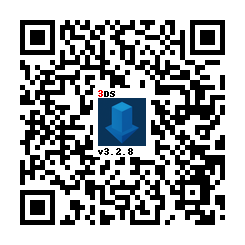
- Schließe FBI und starte Universal-Updater
- Falls es nicht auf deinem Home-Menü erscheint, starte deinen 3DS neu
- Finde TWiLight Menü++ im App-Raster, du kannst mit der 3. Registerkarte in der Seitenleiste suchen, falls du Probleme hast es zu finden
- Es hat dieses Symbol:

- Es hat dieses Symbol:
- Drücke A oder tippe auf das Download-Symbol in der Seitenleiste und wähle
TWiLight Menu++, um es zu installieren- Dies kann eine Weile dauern {% endcapture %} {% assign tab-working-camera = tab-working-camera | split: "////////" %}
{% capture tab-non-working-camera %}
- Lade die neueste Version von
Universal-Updater.ciaherunter - Platziere die
Universal-Updater.ciaDatei irgendwo auf deine SD-Karte - Starte FBI auf deinem Nintendo 3DS
- In FBI gehe zu dem Ort, an dem du die
Universal-Updater.ciaDatei eingefügt haben - Wähle die
Universal-Updater.ciaDatei aus und klicke auf "Install & Delete" - Schließe FBI und starte Universal-Updater
- Falls es nicht auf deinem Home-Menü erscheint, starte deinen 3DS neu
- Finde TWiLight Menü++ im App-Raster, du kannst mit der 3. Registerkarte in der Seitenleiste suchen, falls du Probleme hast es zu finden
- Es hat dieses Symbol:
- Es hat dieses Symbol:
- Drücke A oder tippe auf das Download-Symbol in der Seitenleiste und wähle
TWiLight Menü++, um es zu installieren- Dies kann eine Weile dauern {% endcapture %} {% assign tab-non-working-camera = tab-non-working-camera | split: "////////" %}
{% capture tab-manual %}
- Lade die neueste Version von
TWiLightMenu-3DS.7z herunter - Entpacke
TWiLightMenu-3DS.7z - Kopiere den
_ndsOrdner in dein SD-Karten Stammverzeichnis - Kopiere die
BOOT.NDSDatei in dein SD-Karten Stammverzeichnis - Kopiere den
romsOrdner in dein SD-Karten Stammverzeichnis - Copy the
.ciafile to your SD card root - On your 3DS, install the CIA with FBI {% endcapture %} {% assign tab-manual = tab-manual | split: "////////" %}
Installiere
{% assign tabs = tab-working-camera | concat: tab-non-working-camera | concat: tab-manual %} {% include tabs.html index=0 tabs=tabs %}
Accessing flashcard contents
A flashcard is something that goes in the game card slot, and contains a microSD card slot. If you do not have a flashcard, you are done with this guide. {:.alert .alert-warning}
If you have an R4(i) Ultra
- Follow this guide starting from
To run games using your flashcard firmware- You can safely ignore the warnings
- Open TWLMenu++ Settings
- Switch to the
Misc settingspage - Turn on
Slot-1 microSD access - Exit TWLMenu++ Settings by pressing
Bbutton- If you end up in the DS Classic Menu, press
Bagain
- If you end up in the DS Classic Menu, press
If you don't have an R4(i) Ultra
- Create a file or folder called
primaryinsd:/_nds/(not the flashcard one), so that TWiLight Menu++ reads settings from the console's SD card after it starts your flashcard - Follow this guide starting from
Autobooting TWiLight Menu++ - Copy the
BOOT.NDSfile fromTWiLightMenu-Flashcard.7zto your flashcard’s microSD card root - Open TWLMenu++ Settings
- Switch to the
Misc settingspage - Turn on
SCFG access in Slot-1(Note that this option overridesSD access in Slot-1) - Set
Slot-1: Touch ModetoDSi mode - Turn on
Auto-start Slot-1 - Exit TWLMenu++ Settings by pressing
Bbutton- If you end up in the DS Classic Menu, launch your flashcard
- Otherwise, restart TWiLight Menu++
Switching between SD and flashcard contents
- Press either
SELECT+UporSELECT+Downto switch between the SD and flashcard contents- If the SELECT menu is enabled, you can do so there as well
- If you use the 3DS theme, touch the Game Card/SD Card icon
- If you use the R4/GBC theme, press
Lbutton