mirror of
https://github.com/rvtr/wiki.git
synced 2025-10-31 06:31:13 -04:00

5.1 KiB
5.1 KiB
| lang | layout | section | category | title | long_title | description | tabs | |||||||
|---|---|---|---|---|---|---|---|---|---|---|---|---|---|---|
| fr-FR | wiki | twilightmenu | installing | Installation (3DS) | Installation de TWiLight Menu++ (3DS) | Comment installer TWiLight Menu++ sur la Nintendo 3DS |
|
Vous devrez d'abord avoir un firmware personnalisé sur votre 3DS, suivez 3ds.hacks.guide pour l'installer {:.alert .alert-info}
{% capture tab-working-camera %}
- Ouvrez FBI et sélectionnez
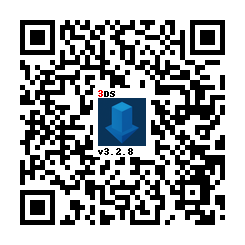
Remote Install, puisScan QR Code - Scannez ce code QR pour installer la dernière version de Universal-Updater
- Fermez FBI et lancez Universal-Updater
- S'il n'apparaît pas sur votre menu HOME, redémarrez votre 3DS
- Trouvez TWiLight Menu++ dans la grille des applications, vous pouvez effectuer une recherche avec le 3ème onglet de la barre latérale si vous avez des difficultés à le trouver
- Il a cette icône :

- Il a cette icône :
- Appuyez sur A ou touchez l'icône de téléchargement dans la barre latérale et sélectionnez
TWiLight Menu++pour l'installer- Cela va prendre un certain temps {% endcapture %} {% assign tab-working-camera = tab-working-camera | split: "////////" %}
{% capture tab-non-working-camera %}
- Téléchargez le dernier
Universal-Updater.cia - Placez le fichier
Universal-Updater.cian'importe où sur votre carte SD - Lancez FBI sur votre Nintendo 3DS
- Dans FBI, allez à l'endroit où vous avez collé le fichier
Universal-Updater.cia - Sélectionnez le fichier
Universal-Updater.ciaet cliquez sur « Install & Delete » - Fermez FBI et lancez Universal-Updater
- S'il n'apparaît pas sur votre menu HOME, redémarrez votre 3DS
- Trouvez TWiLight Menu++ dans la grille des applications, vous pouvez effectuer une recherche avec le 3ème onglet de la barre latérale si vous avez des difficultés à le trouver
- Il a cette icône :
- Il a cette icône :
- Appuyez sur A ou touchez l'icône de téléchargement dans la barre latérale et sélectionnez
TWiLight Menu++pour l'installer- Cela va prendre un certain temps {% endcapture %} {% assign tab-non-working-camera = tab-non-working-camera | split: "////////" %}
{% capture tab-manual %}
- Téléchargez le dernier
TwiLightMenu-3DS.7z - Extrayez
TWiLightMenu-3DS.7z - Copiez le dossier
_ndsà la racine de votre carte SD - Copiez le fichier
BOOT.NDSà la racine de votre carte SD - Copiez le dossier
romsà la racine de votre carte SD - Copy the
.ciafile to your SD card root - On your 3DS, install the CIA with FBI {% endcapture %} {% assign tab-manual = tab-manual | split: "////////" %}
Installation
{% assign tabs = tab-working-camera | concat: tab-non-working-camera | concat: tab-manual %} {% include tabs.html index=0 tabs=tabs %}
Accessing flashcard contents
A flashcard is something that goes in the game card slot, and contains a microSD card slot. If you do not have a flashcard, you are done with this guide. {:.alert .alert-warning}
If you have an R4(i) Ultra
- Follow this guide starting from
To run games using your flashcard firmware- You can safely ignore the warnings
- Open TWLMenu++ Settings
- Switch to the
Misc settingspage - Turn on
Slot-1 microSD access - Exit TWLMenu++ Settings by pressing
Bbutton- If you end up in the DS Classic Menu, press
Bagain
- If you end up in the DS Classic Menu, press
If you don't have an R4(i) Ultra
- Create a file called
primaryinsd:/_nds/(not the flashcard one), so that TWiLight Menu++ reads settings from the console's SD card after it starts your flashcard - Follow this guide starting from
Autobooting TWiLight Menu++ - Copy the
BOOT.NDSfile fromTWiLightMenu-Flashcard.7zto your flashcard’s microSD card root - Open TWLMenu++ Settings
- Switch to the
Misc settingspage - Turn on
SCFG access in Slot-1(Note that this option overridesSD access in Slot-1) - Set
Slot-1: Touch ModetoDSi mode - Turn on
Auto-start Slot-1 - Exit TWLMenu++ Settings by pressing
Bbutton- If you end up in the DS Classic Menu, launch your flashcard
- Otherwise, restart TWiLight Menu++
Switching between SD and flashcard contents
- Press either
SELECT+UporSELECT+Downto switch between the SD and flashcard contents- If the SELECT menu is enabled, you can do so there as well
- If you use the 3DS theme, touch the Game Card/SD Card icon
- If you use the R4/GBC theme, press
Lbutton