mirror of
https://github.com/rvtr/wiki.git
synced 2025-10-31 06:31:13 -04:00

96 lines
4.8 KiB
Markdown
96 lines
4.8 KiB
Markdown
---
|
||
lang: zh-CN
|
||
layout: wiki
|
||
section: twilightmenu
|
||
category: installing
|
||
title: 安装步骤(3DS)
|
||
long_title: 安装 TwiLight Menu++(3DS)
|
||
description: 如何在 Nintendo 3DS上安装 TWiLight Menu++
|
||
tabs:
|
||
-
|
||
working-camera: 摄像头可用
|
||
non-working-camera: 摄像头不可用
|
||
manual: 手动安装
|
||
---
|
||
|
||
你首先需要在你的 3DS 安装好自定义固件(Custom Firmware,CFW),如果没有,请按照 [3ds.hacks.guide](https://3ds.hacks.guide) 的步骤来安装自定义固件。
|
||
{:.alert .alert-info}
|
||
|
||
{% capture tab-working-camera %}
|
||
1. 启动 FBI 并选择 `Remote Install(远程安装)`,再选择 `Scan QR Code(扫描二维码)`
|
||
1. 扫描这个二维码来安装最新版本的 [Universal-Updater](https://github.com/Universal-Team/Universal-Updater)<br> 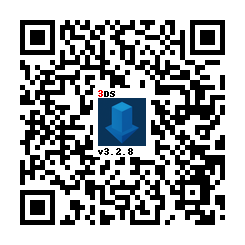
|
||
1. 退出 FBI 并启动 Universal-Updater
|
||
- 如果它没有出现在主菜单上,重启你的 3DS
|
||
1. 在应用列表中找到 TWiLight Menu++,如果找不到它,可以使用侧边栏上的第 3 个按钮进行搜索
|
||
- 它的图标长这样:
|
||
1. 按 <kbd class="face">A</kbd> 键,或是点击侧边栏中的下载图标并选择 `TWiLight Menu++` 来安装它
|
||
- 这需要一些时间
|
||
{% endcapture %}
|
||
{% assign tab-working-camera = tab-working-camera | split: "////////" %}
|
||
|
||
{% capture tab-non-working-camera %}
|
||
1. 下载最新的 [`Universal-Updater.cia`](https://github.com/Universal-Team/Universal-Updater/releases/latest/download/Universal-Updater.cia)
|
||
1. 将 `Universal-Updater.cia` 文件放置在你 SD 卡的任意位置
|
||
1. 在你的 Nintendo 3DS 上启动 FBI
|
||
1. 在 FBI 中,进入你刚才粘贴了 `Universal-Updater.cia` 文件的地方
|
||
1. 选择 `Universal-Updater.cia`,然后点击“Install & Delete”
|
||
1. 退出 FBI 并启动 Universal-Updater
|
||
- 如果它没有出现在主菜单上,重启你的 3DS
|
||
1. 在应用列表中找到 TWiLight Menu++,如果找不到它,可以使用侧边栏上的第 3 个按钮进行搜索
|
||
- 它的图标长这样:
|
||
1. 按 <kbd class="face">A</kbd> 键,或是点击侧边栏中的下载图标并选择 `TWiLight Menu++` 来安装它
|
||
- 这将会需要一段时间
|
||
{% endcapture %}
|
||
{% assign tab-non-working-camera = tab-non-working-camera | split: "////////" %}
|
||
|
||
{% capture tab-manual %}
|
||
1. 下载最新的 [`TwiLightMenu-3DS.7z`](https://github.com/DS-Homebrew/TWiLightMenu/releases/latest/download/TWiLightMenu-3DS.7z)
|
||
1. 解压 `TWiLightMenu-3DS.7z`
|
||
1. 将 `_nds` 文件夹复制到 SD 卡的根目录下
|
||
1. 将 `BOOT.NDS` 文件复制到 SD 卡的根目录下
|
||
1. 将 `roms` 文件夹复制到 SD 卡的根目录下
|
||
1. Copy the `.cia` file to your SD card root
|
||
1. On your 3DS, install the CIA with FBI
|
||
{% endcapture %}
|
||
{% assign tab-manual = tab-manual | split: "////////" %}
|
||
|
||
### 安装
|
||
|
||
{% assign tabs = tab-working-camera | concat: tab-non-working-camera | concat: tab-manual %}
|
||
{% include tabs.html index=0 tabs=tabs %}
|
||
|
||
### Accessing flashcard contents
|
||
|
||
A flashcard is something that goes in the game card slot, and contains a microSD card slot. If you do not have a flashcard, you are done with this guide.
|
||
{:.alert .alert-warning}
|
||
|
||
#### If you have an R4(i) Ultra
|
||
|
||
1. Follow [this](installing-flashcard) guide starting from `To run games using your flashcard firmware`
|
||
- You can safely ignore the warnings
|
||
1. Open TWLMenu++ Settings
|
||
1. Switch to the `Misc settings` page
|
||
1. Turn on `Slot-1 microSD access`
|
||
1. Exit TWLMenu++ Settings by pressing `B` button
|
||
- If you end up in the DS Classic Menu, press `B` again
|
||
|
||
#### If you don't have an R4(i) Ultra
|
||
|
||
1. Create a file called `primary` in `sd:/_nds/` (not the flashcard one), so that TWiLight Menu++ reads settings from the console's SD card after it starts your flashcard
|
||
1. Follow [this](installing-flashcard) guide starting from `Autobooting TWiLight Menu++`
|
||
1. Copy the `BOOT.NDS` file from `TWiLightMenu-Flashcard.7z` to your flashcard’s microSD card root
|
||
1. Open TWLMenu++ Settings
|
||
1. Switch to the `Misc settings` page
|
||
1. Turn on `SCFG access in Slot-1` (Note that this option overrides `SD access in Slot-1`)
|
||
1. Set `Slot-1: Touch Mode` to `DSi mode`
|
||
1. Turn on `Auto-start Slot-1`
|
||
1. Exit TWLMenu++ Settings by pressing `B` button
|
||
- If you end up in the DS Classic Menu, launch your flashcard
|
||
- Otherwise, restart TWiLight Menu++
|
||
|
||
#### Switching between SD and flashcard contents
|
||
- Press either `SELECT`+`Up` or `SELECT`+`Down` to switch between the SD and flashcard contents
|
||
- If the SELECT menu is enabled, you can do so there as well
|
||
- If you use the 3DS theme, touch the Game Card/SD Card icon
|
||
- If you use the R4/GBC theme, press `L` button
|