mirror of
https://github.com/rvtr/wiki.git
synced 2025-10-31 06:31:13 -04:00

38 lines
3.4 KiB
Markdown
38 lines
3.4 KiB
Markdown
---
|
||
lang: ja-JP
|
||
layout: wiki
|
||
section: twilightmenu
|
||
category: other
|
||
title: ワイドスクリーンでプレイ
|
||
description: ニンテンドー3DSでTWiLight Menu++をワイドスクリーンでプレイする方法
|
||
---
|
||
|
||
This section requires a 3DS family console, running a modern CFW environment from [3ds.hacks.guide](https://3ds.hacks.guide).
|
||
{:.alert .alert-info}
|
||
|
||
### インストール
|
||
1. FBIを開き、`Remote Install`を選択し、`Scan QR Code`を実行します
|
||
1. このQRコードをスキャンして、[Universal-Updater](https://github.com/Universal-Team/Universal-Updater)の最新バージョンをインストールします<br> 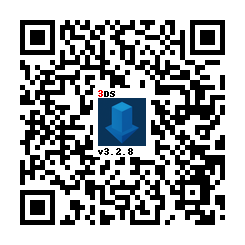
|
||
1. Open Universal Updater from your HOME Menu
|
||
1. Install the TWPatch package
|
||
- If your console is unable to access the Internet, you can download [TWPatch.cia](https://gbatemp.net/download/twpatch.37400/version/38832/download?file=302085) directly, then install it with FBI
|
||
1. Return to the HOME menu and launch TWPatch
|
||
1. Hold <kbd class="face">Y</kbd> + <kbd class="face">B</kbd> to open the patch menu and enable `Widescreen patch (384x240 16:10)`
|
||
1. (Optional!) For a less pixelated widescreen, also enable `GPU scaling (blurry, no filters)`
|
||
1. Press <kbd class="face">B</kbd> to exit the patch menu
|
||
1. Press <kbd>START</kbd> to generate a `TwlBg.cxi` file with widescreen
|
||
- If the top screen doesn't indicate that wide patch is enabled, start from step 3 again
|
||
1. Move `TwlBg.cxi` from `sd:/luma/sysmodules/` to `sd:/_nds/TWiLightMenu/TwlBg/` (create `TwlBg` folder, if it doesn't exist), and rename the file to `Widescreen.cxi`
|
||
1. Restart your 3DS while holding <kbd>SELECT</kbd> to open Luma3DS's configuration
|
||
1. Enable `external FIRMs and modules`, then press <kbd>START</kbd> to save and quit
|
||
1. Open TWiLight Menu++, press <kbd class="face">Y</kbd> on your desired game to bring up the per-game settings, and set `Screen Aspect Ratio` to `16:10`
|
||
|
||
すべて完了しました! ワイドスクリーンでDSゲームをお楽しみください!
|
||
|
||
**注:**
|
||
1. ワイドスクリーンがグリッチに見えないようにするには、TWLMenu++を起動する時に<kbd>START</kbd>または<kbd>SELECT</kbd>を長押ししない
|
||
1. すべてのゲームがワイドスクリーン対応ではありません。 [ワイドスクリーン付きゲームのリストはここにある](https://github.com/DS-Homebrew/TWiLightMenu/blob/master/7zfile/3DS%20-%20CFW%20users/Games%20supported%20with%20widescreen.txt)
|
||
1. このガイドに従ってワイドスクリーン対応のゲームを起動した後、TWL_FIRM(TWLMenu++のGUIを含む)のすべてでワイドスクリーンモードでなってしまう場合は、 `sd:/luma/sysmodules/`に`TwlBg.cxi`を削除して、TWiLight Menu++を[アンインストールして](https://wiki.ds-homebrew.com/twilightmenu/uninstalling-3ds)[再インストールして](https://wiki.ds-homebrew.com/twilightmenu/installing-3ds)、以上のガイドに再従います。また、Luma3DSの元のビルドを使用してください
|
||
1. ほとんどのワイドスクリーンパッチは、3D要素のみをワイドスクリーン用に調整する、2D要素(メニューなど)は引き延ばされますのみです
|
||
1. Luma3DS **must** be loaded from the SD card, if widescreen isn't working ensure that you have `boot.firm` in the root of your SD
|