mirror of
https://github.com/rvtr/wiki.git
synced 2025-10-31 06:31:13 -04:00

61 lines
3.4 KiB
Markdown
61 lines
3.4 KiB
Markdown
---
|
||
lang: fr-FR
|
||
layout: wiki
|
||
section: twilightmenu
|
||
category: installing
|
||
title: Installation (3DS)
|
||
long_title: Installation de TWiLight Menu++ (3DS)
|
||
description: Comment installer TWiLight Menu++ sur la Nintendo 3DS
|
||
tabs:
|
||
-
|
||
working-camera: Caméra fonctionnelle
|
||
non-working-camera: Caméra non fonctionnelle
|
||
manual: Manuel
|
||
---
|
||
|
||
Vous devrez d'abord avoir un firmware personnalisé sur votre 3DS, suivez [3ds.hacks.guide](https://3ds.hacks.guide) pour l'installer
|
||
{:.alert .alert-info}
|
||
|
||
{% capture tab-working-camera %}
|
||
1. Ouvrez FBI et sélectionnez `Remote Install`, puis `Scan QR Code`
|
||
1. Scannez ce code QR pour installer la dernière version de [Universal-Updater](https://github.com/Universal-Team/Universal-Updater)<br> 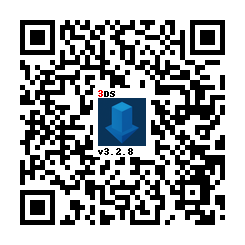
|
||
1. Fermez FBI et lancez Universal-Updater
|
||
- S'il n'apparaît pas sur votre menu HOME, redémarrez votre 3DS
|
||
1. Trouvez TWiLight Menu++ dans la grille des applications, vous pouvez effectuer une recherche avec le 3<sup>ème</sup> onglet de la barre latérale si vous avez des difficultés à le trouver
|
||
- Il a cette icône : 
|
||
1. Appuyez sur <kbd class="face">A</kbd> ou touchez l'icône de téléchargement dans la barre latérale et sélectionnez `TWiLight Menu++` pour l'installer
|
||
- Cela va prendre un certain temps
|
||
{% endcapture %}
|
||
{% assign tab-working-camera = tab-working-camera | split: "////////" %}
|
||
|
||
{% capture tab-non-working-camera %}
|
||
1. Téléchargez le dernier [`Universal-Updater.cia`](https://github.com/Universal-Team/Universal-Updater/releases/latest/download/Universal-Updater.cia)
|
||
1. Placez le fichier `Universal-Updater.cia` n'importe où sur votre carte SD
|
||
1. Lancez FBI sur votre Nintendo 3DS
|
||
1. Dans FBI, allez à l'endroit où vous avez collé le fichier `Universal-Updater.cia`
|
||
1. Sélectionnez le fichier `Universal-Updater.cia` et cliquez sur « Install & Delete »
|
||
1. Fermez FBI et lancez Universal-Updater
|
||
- S'il n'apparaît pas sur votre menu HOME, redémarrez votre 3DS
|
||
1. Trouvez TWiLight Menu++ dans la grille des applications, vous pouvez effectuer une recherche avec le 3<sup>ème</sup> onglet de la barre latérale si vous avez des difficultés à le trouver
|
||
- Il a cette icône : 
|
||
1. Appuyez sur <kbd class="face">A</kbd> ou touchez l'icône de téléchargement dans la barre latérale et sélectionnez `TWiLight Menu++` pour l'installer
|
||
- Cela va prendre un certain temps
|
||
{% endcapture %}
|
||
{% assign tab-non-working-camera = tab-non-working-camera | split: "////////" %}
|
||
|
||
{% capture tab-manual %}
|
||
1. Téléchargez le dernier [`TwiLightMenu-3DS.7z`](https://github.com/DS-Homebrew/TWiLightMenu/releases/latest/download/TWiLightMenu-3DS.7z)
|
||
1. Extrayez `TWiLightMenu-3DS.7z`
|
||
1. Copiez le dossier `_nds` à la racine de votre carte SD
|
||
1. Copiez le fichier `BOOT.NDS` à la racine de votre carte SD
|
||
1. Copiez le dossier `roms` à la racine de votre carte SD
|
||
1. Copiez les deux fichiers `.cia` à la racine de votre carte SD
|
||
1. Sur votre 3DS, installez les deux CIAs avec FBI
|
||
{% endcapture %}
|
||
{% assign tab-manual = tab-manual | split: "////////" %}
|
||
|
||
### Installation
|
||
|
||
{% assign tabs = tab-working-camera | concat: tab-non-working-camera | concat: tab-manual %}
|
||
{% include tabs.html index=0 tabs=tabs %}
|