---
lang: he-IL
layout: wiki
section: ds-index
category: guides
title: DS Game Forwarders
description: How to use DS game forwarders on hiyaCFW or 3DS HOME menu
tabs:
-
tab-3ds-sd-card: 3DS SD card
tab-dsi-sd-card: DSi SD card
tab-flashcard: Flashcard
---
Forwarders are icons on your HOME menu or hiyaCFW DSi Menu that redirect to another software that runs the icon as listed. In this case, one can add DS games from the SD card (utilizing nds-bootstrap) or from a compatible flashcard (via its respective kernel) to the HOME menu or hiyaCFW for easier access to games.
משחקי DS צריכים לעבור דאמפ לפורמט `.nds` דיגיטלי. You can dump your DS cartridges using [GodMode9](https://3ds.hacks.guide/dumping-titles-and-game-cartridges#dumping-a-game-cartridge) on 3DS, or [GodMode9i](https://dsi.cfw.guide/dumping-game-cards) on DSi.
{:.alert .alert-info}
If you have any issues, check the FAQs on the [GBAtemp thread](https://gbatemp.net/threads/nds-forwarder-cias-for-your-home-menu.426174/).
{:.alert .alert-warning}
Choose one of the following to add to the HOME menu:
{% capture tab-3ds-sd-card %}
This page assumes you are running a modern CFW environment from [3ds.hacks.guide](https://3ds.hacks.guide).
{:.alert .alert-warning}
### חלק 1: השגת הקבצים הנדרשים
If you already have Universal Updater installed on your console, you can skip to step 3.
{:.alert .alert-info}
1. פתחו את FBI ובחרו `Remote Install`, לאחר מכן בחרו then `Scan QR Code`
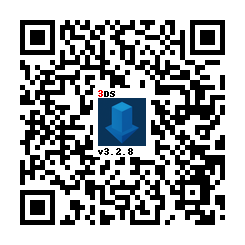
1. סרקו את קוד הQR הזה על מנת להתקין את הגרסה האחרונה של [Universal-Updater](https://github.com/Universal-Team/Universal-Updater)
1. פתחו את Universal Updater מתפריט הבית שלכם
1. התקן את חבילת NDSForwarder
1. NDSForwarder והקבצים הנדרשים עבורו מוגדרים במקומות הייעודים שלהם
### חלק 2: NDSForwarder
1. פתחו את הHomebrew Launcher
1. בHomebrew Launcher פתחו את `NDS Forwarder Generator`
1. נווטו למיקום של המשחק שלכם ולחצו על A
1. אשרו שאתם רוצים להתקין על ידי בחירה ב`Yes`
1. לאחר שזה מותקן, המשחק יופיע ככותר בתפריט הבית
{% endcapture %}
{% assign tab-3ds-sd-card = tab-3ds-sd-card | split: "////////" %}
{% capture tab-dsi-sd-card %}
### דרישות
- A Nintendo DSi with [Unlaunch](https://dsi.cfw.guide/installing-unlaunch) and [hiyaCFW](../hiyacfw/installing) installed
- The latest release of [Title Manager for HiyaCFW](https://github.com/JeffRuLz/TMFH/releases)
- A 64-bit OS
- The latest release of [Forwarder3-DS](https://www.dropbox.com/s/b9de5ii6vm3dxfn/Forwarder3DS-v2.9.6.zip?dl=0)
- [Java 8](https://www.java.com/en/download/)
- **Linux users:** JavaFX
- Debian-based: Run [this script](https://gist.githubusercontent.com/puntillol59/7532b6583380baca236dcaf2d8f75b5c/raw/e8b9d193f8b24de941160c7292ec0bb3b997e98e/main.sh)
- Arch: `sudo pacman -S java8-openjfx && sudo archlinux-java set java-8-openjdk/jre`
### חלק 1: צעדים ראשונים
1. Download the [Forwarder pack for DSi SD Card](https://github.com/RocketRobz/NTR_Forwarder/releases/latest/download/DS.Game.Forwarder.pack.DSi.3DS.SD.Card.7z)
1. Extract the contents of the `for SD Card root` folder to the root of your DSi's SD card, and (if the folder exists)
After you extract the pack for your card, you can edit `sd:/_nds/nds-bootstrap.ini` and change the following settings.
- BOOST_CPU: If set to 1, TWL clock speed is used, so lags begone
- SOUND_FREQ: If set to 1, sound will play at 48khz, instead of 32khz
- LANGUAGE: If set to -1, the system language will be used
- REGION: If set to -2, the DSiWare game's region will be used instead of the system's
### חלק 2: קבלת קבצי תיקון האנטי פיראטיות (AP) מTWiLight Menu++
If you already have TWiLight Menu++, skip to the next section.
{:.alert .alert-info}
1. Download the latest [`TWiLightMenu-DSi.7z`](https://github.com/DS-Homebrew/TWiLightMenu/releases/latest/download/TWiLightMenu-DSi.7z)
1. In the 7z file, go to the `_nds/TWiLightMenu/extras` folder
1. Drag the `apfix.pck` file to `sd:/_nds/ntr-forwarder/`
### חלק 3: Forwarder3-DS
1. פתחו את `Forwarder3DS.jar`
- **משתמשי Windows:** אם זה לא נפתח, הורידו את [Forwarder3DS.bat](/assets/files/Forwarder3DS.bat) ושימו אותו באותה תיקיה כמו Forwarder3DS.jar, והריצו
1. הגדירו את כרטיס שלכם כ`Target` בצד שמאל
- **הערה:** אם אתם לא רואים רשימה של כרטיסים, הורידו [את קובץ הZIP הזה](https://github.com/Olmectron/olmectron.github.io/archive/master.zip), ושימו את התיקיה `forwarders` באותה תיקיה כמו Forwarder3DS.jar ואז שנו אות השם ל`.forwarders`
1. הפעילו את `Automatically set ROM path`
- **משתמשי Linux:** הדרך האוטומטית לא נכונה מאחר והיא כוללת את כל הדרך (לדוגמה `/media/$USER/something/`), בבקשה מחקו את החלק הזה
- **משתמשי macOS:** הדרך האוטומטית לא נכונה מאחר והיא כוללת את `/Volumes/(cardname)/` בהתחלה, בבקשה מחקו את החלק הזה
1. לחצו על התיקיה בפינה הימנית העליונה ובחרו את הרומים שתרצו להכין עבורים מעבירים, או גררו ושחררו אותם על החלון
- **הערה:** קבצי הרום חייבים להיות כבר על כרטיס הSD שלכם כשאתם בוחרים אותם, ולא ניתן להזיזם בלי ליצור מחדש את המעבירים
- If your save file is in the same folder as the ROM, move it to a folder called `saves`, with the `saves` folder being in the same place as the ROMs
1. אם אתם משחקים בגרסת האק או תרגום של משחק DSi-Enhanced שהבאנר או הכותרת שלו שונו, מצאו את הבאנר [כאן](https://www.dropbox.com/sh/igr47pr0q5bh4p5/AAA9Dy8VOGfBLUA6KdLDSDW-a?dl=0), לחצו מקש ימיני על המשחק בForwarder3-DS, לחצו על `Import banner` ובחרו את הבאנר לשימוש
1. אם אתם משתמשים ברום של הומברו, לחצו עליו, מחקו את ה `Game title` שלו ורשמו את השם של המשחק
1. Click the floppy drive button to generate the forwarder
1. Copy the NDS file made by the application to your DSi SD card
### Part 4: Installing to the hiyaCFW DSi Menu
1. Copy `tmfh.nds` from the TMFH `.zip` file to the root of your SD card
1. Reinsert your SD card into your DSi
1. Launch `tmfh.nds` from Unlaunch or TWiLight Menu++
1. Install the forwarder NDS file using TMFH
{% endcapture %}
{% assign tab-dsi-sd-card = tab-dsi-sd-card | split: "////////" %}
{% capture tab-flashcard %}
### Requirements
- **DSi users:**
- A Nintendo DSi with [Unlaunch](https://dsi.cfw.guide/installing-unlaunch) and [hiyaCFW](installing) installed
- The latest release of [Title Manager for Hiya](https://github.com/JeffRuLz/TMFH/releases)
- **3DS users:**
- A Nintendo 3DS family console with modern CFW environment from [3ds.hacks.guide](https://3ds.hacks.guide)
{% capture flashcards %}
The recommended flashcards are the DSTT and Acekard 2i. If you want perfect game compatibility, get the SuperCard DSTWO/DSTWO PLUS. The only downside is that it drains your system battery faster.
If you have a flashcard that works with Apache Thunder's NTR Launcher, you can request it [on the GBAtemp thread](https://gbatemp.net/threads/nds-forwarder-cias-for-your-home-menu.426174/). Be sure to specify which build you're using (Normal or Alt), and if `RESETSLOT1` is set to `0` or `1` in `sd:/nds/ntr_launcher.ini`.
Compatible:
- [Acekard 2(i)](http://www.nds-card.com/ProShow.asp?ProID=160) (DSi-Enhanced games, including newer NTR games, don't work)
- [Acekard RPG](http://wiki.gbatemp.net/wiki/Acekard_RPG)
- [DSTT](http://www.nds-card.com/ProShow.asp?ProID=157)
- [DSTT Advance](http://kaze-tado.way-nifty.com/moo/images/2008/11/19/200811202.jpg)
- Galaxy Eagle
- M3 DS Real
- [M3 DS Simply](https://farm2.static.flickr.com/1333/752793411_d91b182eb7.jpg) (uses < 2 GB microSD card)
- [R4 DS](http://www.nds-card.com/ProShow.asp?ProID=141) (Original Non-SDHC version, uses < 2 GB microSD card)
- [R4 SDHC Snoopy](http://www.nds-card.com/ProShow.asp?ProID=567)
- [R4 SDHC RTS LITE](http://www.nds-card.com/ProShow.asp?ProID=450) ([www.r4isdhc.com](http://www.r4isdhc.com/))
- R4 SDHC Upgrade ([www.r4i-sdhc.com](http://www.r4i-sdhc.com/))
- [R4i3D](http://www.3ds-cart.com/en/other-flashcarts/35-r4i3d-revolution-cart-for-3ds-dsi-dsl-ds.html) ([www.r4i3d.com](http://www.r4i-sdhc.com/))
- [R4iDSN](http://3ds-flashcard.com/home/28-r4idsn-3ds.html)
- [R4i Gold](http://www.nds-card.com/ProShow.asp?ProID=330)
- [R4i Gold RTS](http://www.nds-card.com/ProShow.asp?ProID=149) ([www.r4ids.cn](http://www.r4ids.cn/))
- [R4i-SDHC](http://www.nds-card.com/ProShow.asp?ProID=146) ([www.r4i-sdhc.com](http://www.r4i-sdhc.com)) (Normal and RTS versions)
- R4iTT ([www.r4itt.net](http://www.r4itt.net/)) (Purple card may be incompatible)
- [SuperCard DSONE](http://wiki.gbatemp.net/wiki/SuperCard_DSONEi)
- [SuperCard DSTWO](http://www.nds-card.com/ProShow.asp?ProID=135) (Normal and Plus versions)
Untested:
- R4i3D NEW (Use R4iDSN template and pack)
Partially compatible:
- Ace 3DS+ (Game compatibility is bad, so saving/loading save file results in crashing)
- Gateway Blue Card (Game compatibility is bad, so saving/loading save file results in crashing)
- EX4DS (Game compatibility is bad, so saving/loading save file results in crashing)
- R4iLS (Game compatibility is bad, so saving/loading save file results in crashing)
- Cards with [www.r4isdhc.com.cn](http://www.r4isdhc.com.cn/) (Game compatibility is bad, so saving/loading save file results in crashing)
Incompatible:
- CycloDS (i)Evolution (Can autoboot ROMs, but it works differently than other flashcards)
- (i)Edge (Unable to autoboot a .nds ROM)
- R4 Gold Pro ([www.r4i-gold.com](http://www.r4i-gold.com) / [www.r4i-gold.me](http://www.r4i-gold.me)) (YSMenu (not the forwarder process) bricks the card)
- R4i3D (2012)
- R4 Infinity Dual Core
- R4 SDHC
- R4 SDHC Dual-Core ([www.r4isdhc.com](http://www.r4isdhc.com/)) (YSMenu (not the forwarder process) bricks the card)
{% endcapture %}
A supported flashcard from this list
{{ flashcards | markdownify }}
- A 64 bit OS
- [Forwarder3-DS](https://www.dropbox.com/s/b9de5ii6vm3dxfn/Forwarder3DS-v2.9.6.zip?dl=0)
- [Java 8](https://www.java.com/en/download/)
- **Linux users:** JavaFX
- Debian-based: Run [this script](https://gist.githubusercontent.com/puntillol59/7532b6583380baca236dcaf2d8f75b5c/raw/e8b9d193f8b24de941160c7292ec0bb3b997e98e/main.sh)
- Arch: `sudo pacman -S java8-openjfx && sudo archlinux-java set java-8-openjdk/jre`
### Part 1: Getting started
1. Download one of these packs:
- [Original R4 / M3 Simply](https://www.dropbox.com/s/juxzri7h8bttunh/DS%20Game%20Forwarder%20pack%20%28Original%20R4%2C%20M3%20Simply%29.7z?dl=0)
- [Acekard 2(i) / M3DS Real](https://www.dropbox.com/s/5elogf885sd62hu/DS%20Game%20Forwarder%20pack%20%28M3DS%20Real%29.7z?dl=0)
- [DSTT / R4i Gold / R4i-SDHC / R4 SDHC Upgrade / SC DSONE](https://www.dropbox.com/s/xxfmvikwmnvsu63/DS%20Game%20Forwarder%20pack%20%28DSTT%2C%20R4i%20Gold%2C%20R4i-SDHC%2C%20SC%20DSONE%29.7z?dl=0)
- [Acekard RPG](https://drive.google.com/file/d/0B2_1xHkEp2_6OHVuZEJwU1BKbEU/view?usp=sharing)
- [R4iDSN / R4i Gold RTS / R4i Gold 3DS Plus](https://www.dropbox.com/s/j8nquh073k9y0h7/DS%20Game%20Forwarder%20pack%20%28R4iDSN%2C%20R4i%20Gold%20RTS%29.7z?dl=0)
- [Ace 3DS+ / Gateway Blue Card / R4iLS / R4iTT](https://www.dropbox.com/s/fd7dzhn8burcq02/DS%20Game%20Forwarder%20pack%20%28Ace3DS%2C%20GW%20Blue%20Card%2C%20R4iTT%29.7z?dl=0)
- [SC DSTWO](https://www.dropbox.com/s/pyyg0vq8b0nmhqd/DS%20Game%20Forwarder%20pack%20%28SC%20DSTWO%29.7z?dl=0)
1. Extract the contents of the `for Slot-1 microSD` folder to the root of your flashcard's microSD card, and (if the folder exists) the contents of the `for 3DS SD card` folder to the root of your 3DS's SD card
- What will be in each pack for loading ROMs:
- Original R4/M3 Simply - WoodR4 & YSMenu
- DSTT/R4i Gold/R4i-SDHC/R4 SDHC Dual-Core/R4 SDHC Upgrade/SC DSONE, Acekard 2(i)/M3DS Real/R4i-SDHC 1.4.x - YSMenu
- Acekard RPG, Ace 3DS+/Gateway Blue Card/R4iLS/R4iTT, R4iDSN/R4i Gold RTS - WoodR4
After you extract the pack for your card, you can edit `sd:/_nds/ntr_forwarder.ini` to change the following settings. This isn't possible for Acekard RPG, R4 DS, and R4i Gold RTS.
- `NTRCLOCK`: If set to `0` or A is held, the DSi boot screen will appear instead of the normal DS splash, and TWL clock speed is used, so lags begone
- `DISABLEANIMATION`: If set to `1` or B is held, the DS/DSi boot screen is skipped
- `HEALTHSAFETYMSG`: If set to `1`, the boot screen's health and safety message will appear on the bottom screen, otherwise the bottom screen stays white with no health and safety message
### Part 2: Getting the AP fix files from TWiLight Menu++
If you already have TWiLight Menu++, skip to the next section.
{:.alert .alert-info}
1. Download the latest [`TWiLightMenu-3DS.7z`](https://github.com/DS-Homebrew/TWiLightMenu/releases/latest/download/TWiLightMenu-3DS.7z)
1. In the 7z file, go to the `_nds/TWiLightMenu/extras` folder
1. Drag the `apfix.pck` file to `fat:/_nds/ntr-forwarder/`
### Part 3: Forwarder3-DS
1. Open `Forwarder3DS.jar`
- **Windows users:** If it doesn't open, download this [Forwarder3DS.bat](/assets/files/Forwarder3DS.bat), place it in the same folder as Forwarder3DS.jar, and run it
1. Set your card as the `Target` on the left
- **NOTE:** If you don't see a list of cards, download [this zip](https://github.com/Olmectron/olmectron.github.io/archive/master.zip), and put the `forwarders` folder in the same folder as Forwarder3DS.jar, then rename it to `.forwarders`
1. Enable `Automatically set ROM path`
- **Linux users:** The automatic path is incorrect since it includes the entire path (e.g. `/media/$USER/something/`), please remove that part
- **MacOS users:** The automatic path is incorrect since it includes `/Volumes/(cardname)/` at the start, please remove that part
1. Click the folder in the top right and select the ROMs you want to make forwarders for or drag and drop them onto the window
- **NOTE:** The ROMs must already be on your SD card when selecting them, and can't be moved without recreating the forwarders
1. If you're playing a hack/translation of a DSi-Enhanced game that has it's banner/title edited, find the banner for the game from [here](https://www.dropbox.com/sh/igr47pr0q5bh4p5/AAA9Dy8VOGfBLUA6KdLDSDW-a?dl=0), right click on the game in Forwarder3-DS, click `Import banner`, and click on the banner to use
1. If using a homebrew ROM, click on it, then clear the `Game title` and type the game's title
1. Click the floppy disk button to generate the forwarders
### Part 4: Installing the forwarder
- If using a 3DS family console:
1. Copy the CIA(s) to your 3DS's SD card, then install them using FBI
- If using EmuNAND, install to both SysNAND and EmuNAND
- If using a DSi:
1. Copy `tmfh.nds` from the TMFH `.zip` file to the root of your SD card
1. Reinsert your SD card into your DSi
1. Launch `tmfh.nds` from Unlaunch or TWiLight Menu++
1. Install the forwarder NDS file using TMFH
{% endcapture %}
{% assign tab-flashcard = tab-flashcard | split: "////////" %}
{% assign tabs = tab-3ds-sd-card | concat: tab-dsi-sd-card | concat: tab-flashcard %}
{% include tabs.html index=0 tabs=tabs %}