---
lang: pl-PL
layout: wiki
section: twilightmenu
category: installing
title: Instalacja (3DS)
long_title: Instalacja TWiLight Menu++ (3DS)
description: Jak zainstalować TWiLight Menu++ na Nintendo 3DS
tabs:
-
working-camera: Działający Aparat
non-working-camera: Niedziałający Aparat
manual: Instrukcja
---
Najpierw musisz mieć zainstalowany niestandardowy firmware (Custom Firmware, CFW) na 3DS-ie, możesz go zainstalować z pomocą [3ds.hacks.guide](https://3ds.hacks.guide)
{:.alert .alert-info}
{% capture tab-working-camera %}
1. Otwórz FBI i wybierz `Remote Install`, a następnie `Scan QR Code`
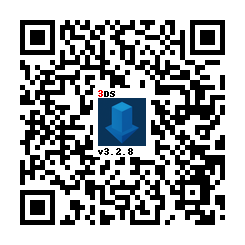
1. Zeskanuj ten kod QR, by zainstalować najnowszą wersję [Universal-Updater](https://github.com/Universal-Team/Universal-Updater)
1. Zamknij FBI i uruchom Universal-Updater
- Jeśli nie pokaże się na twoim ekranie głównym, zrestartuj konsolę
1. Znajdź TWiLight Menu++ w liście aplikacji, jeśli masz problem ze znalezieniem aplikacji, możesz użyć wyszukiwarki na 3. pasku
- Ma taką ikonę: 
1. Naciśnij A lub naciśnij ikonę pobierania na pasku bocznym i wybierz `TWiLight Menu++` aby go zainstalować
- To trochę zajmie
{% endcapture %}
{% assign tab-working-camera = tab-working-camera | split: "////////" %}
{% capture tab-non-working-camera %}
1. Pobierz najnowszą wersję [`Universal-Updater.cia`](https://github.com/Universal-Team/Universal-Updater/releases/latest/download/Universal-Updater.cia)
1. Umieść plik `Universal-Updater.cia` w dowolnym miejscu na karcie SD
1. Uruchom FBI na swoim Nintendo 3DS
1. W FBI, przejdź do miejsca, w którym wkleiłeś plik `Universal-Updater.cia`
1. Wybierz plik `Universal-Updater.cia` i naciśnij "Install & Delete"
1. Zamknij FBI i uruchom Universal-Updater
- Jeśli nie pojawi się w głównym menu, uruchom ponownie swój 3DS
1. Znajdź TWiLight Menu++ w liście aplikacji, jeśli masz problem ze znalezieniem aplikacji, możesz użyć wyszukiwarki na 3. pasku
- Ma taką ikonę: 
1. Naciśnij A lub naciśnij ikonę pobierania na pasku bocznym i wybierz `TWiLight Menu++` aby go zainstalować
- To trochę zajmie
{% endcapture %}
{% assign tab-non-working-camera = tab-non-working-camera | split: "////////" %}
{% capture tab-manual %}
If you use a Windows edition which contains Windows Defender, it'll detect the `.7z` file as a Trojan due to a false positive. To fix the false positive, ensure Windows Defender is up to date.
{:.alert .alert-warning}
1. Pobierz najnowszą wersję [`TWiLightMenu-3DS.7z`](https://github.com/DS-Homebrew/TWiLightMenu/releases/latest/download/TWiLightMenu-3DS.7z)
1. Wypakuj `TWiLightMenu-3DS.7z`
1. Skopiuj folder `_nds` do katalogu głównego karty SD
1. Skopiuj plik `BOOT.NDS` do katalogu głównego karty SD
1. Skopiuj folder `roms` do katalogu głównego karty SD
1. Copy the `.cia` file to your SD card root
1. On your 3DS, install the CIA with FBI
{% endcapture %}
{% assign tab-manual = tab-manual | split: "////////" %}
### Instalacja
{% assign tabs = tab-working-camera | concat: tab-non-working-camera | concat: tab-manual %}
{% include tabs.html index=0 tabs=tabs %}
### Accessing flashcard contents
A flashcard is something that goes in the game card slot, and contains a microSD card slot. If you do not have a flashcard, you are done with this guide.
{:.alert .alert-warning}
#### If you have an R4(i) Ultra
1. Follow [this](installing-flashcard) guide starting from `To run games using your flashcard firmware`
- You can safely ignore the warnings
1. Open TWLMenu++ Settings
1. Switch to the `Misc settings` page
1. Turn on `Slot-1 microSD access`
1. Exit TWLMenu++ Settings by pressing `B` button
- If you end up in the DS Classic Menu, press `B` again
#### If you don't have an R4(i) Ultra
1. Create a file or folder called `primary` in `sd:/_nds/` (not the flashcard one), so that TWiLight Menu++ reads settings from the console's SD card after it starts your flashcard
1. Follow [this](installing-flashcard) guide starting from `Autobooting TWiLight Menu++`
1. Copy the `BOOT.NDS` file from `TWiLightMenu-Flashcard.7z` to your flashcard’s microSD card root
1. Open TWLMenu++ Settings
1. Switch to the `Misc settings` page
1. Turn on `SCFG access in Slot-1` (Note that this option overrides `SD access in Slot-1`)
1. Set `Slot-1: Touch Mode` to `DSi mode`
1. Turn on `Auto-start Slot-1`
1. Exit TWLMenu++ Settings by pressing `B` button
- If you end up in the DS Classic Menu, launch your flashcard
- Otherwise, restart TWiLight Menu++
#### Switching between SD and flashcard contents
- Press either `SELECT`+`Up` or `SELECT`+`Down` to switch between the SD and flashcard contents
- If the SELECT menu is enabled, you can do so there as well
- If you use the 3DS theme, touch the Game Card/SD Card icon
- If you use the R4/GBC theme, press `L` button