---
lang: en-US
layout: wiki
section: twilightmenu
category: installing
title: Installing (3DS)
long_title: Installing TWiLight Menu++ (3DS)
description: How to install TWiLight Menu++ on the Nintendo 3DS
tabs:
- working-camera: Working camera
non-working-camera: Non-working camera
manual: Manual
---
You will first need to have custom firmware on your 3DS, follow [3ds.hacks.guide](https://3ds.hacks.guide) to install it
{:.alert .alert-info}
{% capture tab-working-camera %}
1. Open FBI and select `Remote Install`, then `Scan QR Code`
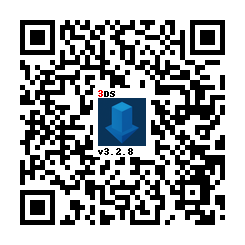
1. Scan this QR code to install the latest version of [Universal-Updater](https://github.com/Universal-Team/Universal-Updater)
1. Close FBI and launch Universal-Updater
- If it doesn't show up on your home menu, reboot your 3DS
1. Find TWiLight Menu++ in the app grid, you can search with the 3rd tab on the sidebar if you have trouble finding it
- It has this icon: 
1. Press A or tap the download icon in the sidebar and select `TWiLight Menu++` to install it
- This will take a while
- If installation fails, ensure the console is connected to the internet. Otherwise, click the `Manual` tab
{% endcapture %}
{% assign tab-working-camera = tab-working-camera | split: "////////" %}
{% capture tab-non-working-camera %}
1. Download the latest [`Universal-Updater.cia`](https://github.com/Universal-Team/Universal-Updater/releases/latest/download/Universal-Updater.cia)
1. Place the `Universal-Updater.cia` file anywhere on your SD card
1. Launch FBI on your Nintendo 3DS
1. In FBI, go to the place you pasted the `Universal-Updater.cia` file
1. Select the `Universal-Updater.cia` file and hit "Install & Delete"
1. Close FBI and launch Universal-Updater
- If it doesn't show up on your home menu, reboot your 3DS
1. Find TWiLight Menu++ in the app grid, you can search with the 3rd tab on the sidebar if you have trouble finding it
- It has this icon: 
1. Press A or tap the download icon in the sidebar and select `TWiLight Menu++` to install it
- This will take a while
- If installation fails, ensure the console is connected to the internet. Otherwise, click the `Manual` tab
{% endcapture %}
{% assign tab-non-working-camera = tab-non-working-camera | split: "////////" %}
{% capture tab-manual %}
1. Download the latest [`TWiLightMenu-3DS.7z`](https://github.com/DS-Homebrew/TWiLightMenu/releases/latest/download/TWiLightMenu-3DS.7z)
- If it does not download, see the [release page](https://github.com/DS-Homebrew/TWiLightMenu/releases/latest)
1. Extract `TWiLightMenu-3DS.7z`
1. Copy the `_nds` folder to your SD card root
1. Copy the `BOOT.NDS` file to your SD card root
1. Copy the `roms` folder to your SD card root
1. Copy the `.cia` file to your SD card root
1. On your 3DS, install the CIA with FBI
{% endcapture %}
{% assign tab-manual = tab-manual | split: "////////" %}
### Installing
{% assign tabs = tab-working-camera | concat: tab-non-working-camera | concat: tab-manual %}
{% include tabs.html index=0 tabs=tabs %}
### Accessing flashcard contents
A flashcard is something that goes in the game card slot, and contains a microSD card slot. If you do not have a flashcard, you are done with this guide.
{:.alert .alert-warning}
#### If you have an R4(i) Ultra
1. Follow [this](installing-flashcard) guide starting from `To run games using your flashcard firmware`
- You can safely ignore the warnings
1. Open TWLMenu++ Settings
1. Switch to the `Misc settings` page
1. Turn on `Slot-1 microSD access`
1. Exit TWLMenu++ Settings by pressing `B` button
- If you end up in the DS Classic Menu, press `B` again
#### If you don't have an R4(i) Ultra
1. Create a file or folder called `primary` in `sd:/_nds/` (not the flashcard one), so that TWiLight Menu++ reads settings from the console's SD card after it starts your flashcard
1. Follow [this](installing-flashcard) guide starting from `Autobooting TWiLight Menu++`
1. Copy the `BOOT.NDS` file from `TWiLightMenu-Flashcard.7z` to your flashcard’s microSD card root
1. Open TWLMenu++ Settings
1. Switch to the `Misc settings` page
1. Turn on `SCFG access in Slot-1` (Note that this option overrides `SD access in Slot-1`)
1. Set `Slot-1: Touch Mode` to `DSi mode`
1. Turn on `Auto-start Slot-1`
1. Exit TWLMenu++ Settings by pressing `B` button
- If you end up in the DS Classic Menu, launch your flashcard
- Otherwise, restart TWiLight Menu++
#### Switching between SD and flashcard contents
- Press either `SELECT`+`Up` or `SELECT`+`Down` to switch between the SD and flashcard contents
- If the SELECT menu is enabled, you can do so there as well
- If you use the 3DS theme, touch the Game Card/SD Card icon
- If you use the R4/GBC theme, press `L` button